Copyright © D-One Software House - VAT: 02211990367 - ReportOne Program developed with the Nios4 platform - Powered by D-One - Privacy Policy
Cloud Terms and Conditions - Software Licenseand - Cookie Settings
CONTACTS : Salessales@d-one.info

GUIDE to using the TICKETING Component for ReportOne
The Nios4 Ticketing System is a portal that organizes the management of customer support requests, customizable and modifiable, aimed at customers who need to manage support and intervention requests that their own clients make via calls, WhatsApp, messages, and emails. To avoid getting lost in managing requests, the Ticketingorganizes and displays all requests and history from the beginning to the resolution of the intervention within the Management System. The system is aimed at the service owner and those who use the service, automatically notifying all updates via email, integrated into ReportOne.
For the service owner:
The service owner is the one who offers the ticket service to their clients. Ticketing is located among the sections on the left.
It is Mandatory to fill in the following fields:
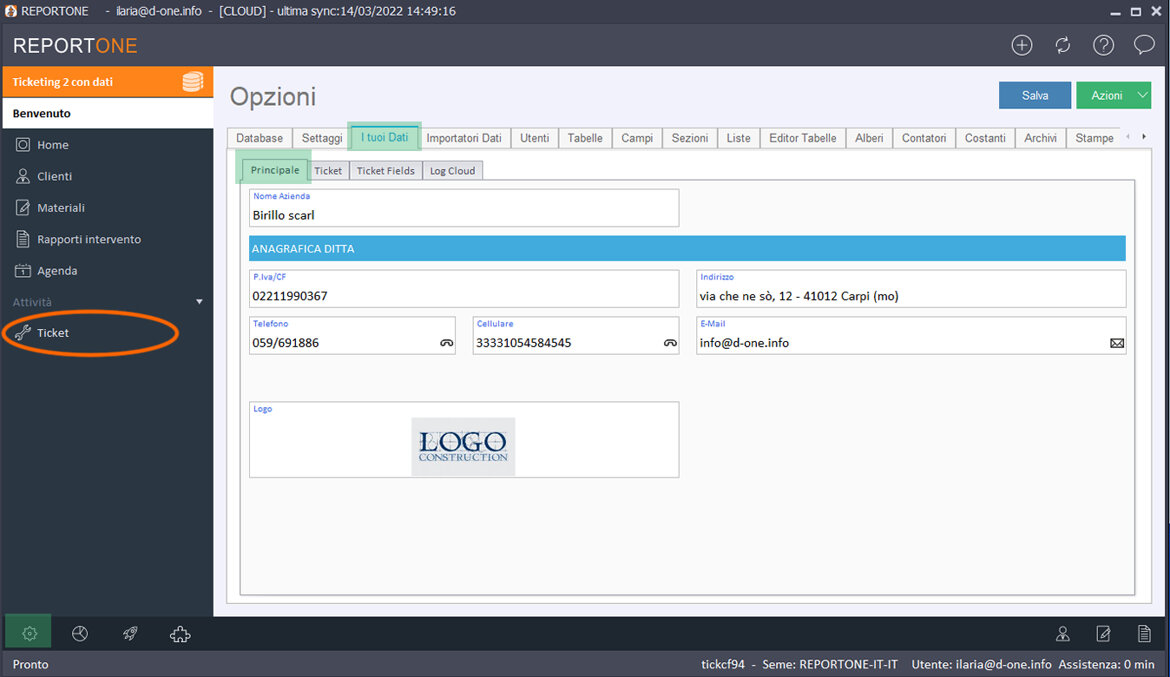
1. FILL IN FIELDS in the Your Data table: In the Main additional table: the Company Name, E-Mail and set a Logo for your business.
2. Click the blue button to activate and set up Ticketing
3. To make the service available to your Clients, provide the link you find in the "url slot ticketing" field that is given to you at the end of the component installation, so they can register for the service for the first time through a registration form, then they will have access to all features with their own credentials, always by accessing the link above.
LET'S EXPLORE how it works:
Once the entire installation procedure has been carried out correctly, there will be new tables and new features within the program. What will be important for the ticket service will be the Clients Table, the new Ticket Table and all the new fields in the Info Table, visible below the Your Data Table.
Clients Section. The Clients section is where all your clients will be saved. With the update, when opening the Client Card you will see a new field, called Check Ticket.
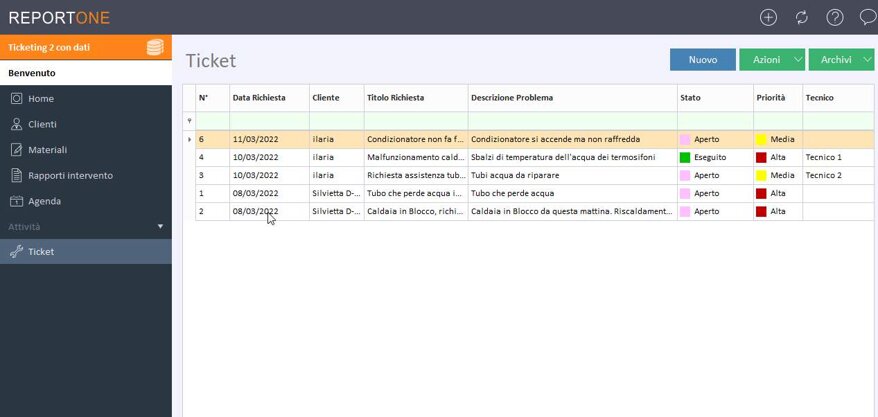
Ticket Section. In this section there will be all the support requests. The fields are No., the Title of the request, the Status (Open, Suspended, Reschedule, Completed), the Priority which indicates the level of urgency of the request (Low, Medium, High), the Description of the request, the Request Date, that is, the date on which the request was sent, and the Client who made the ticket request. You can later make changes such as updating the progress status of the request.
In the Your Data Table. In Options in the Your Data Table there will be a series of data to fill in for the operation of the ticketing service, some mandatory and others optional to customize the view of the Ticket fields.
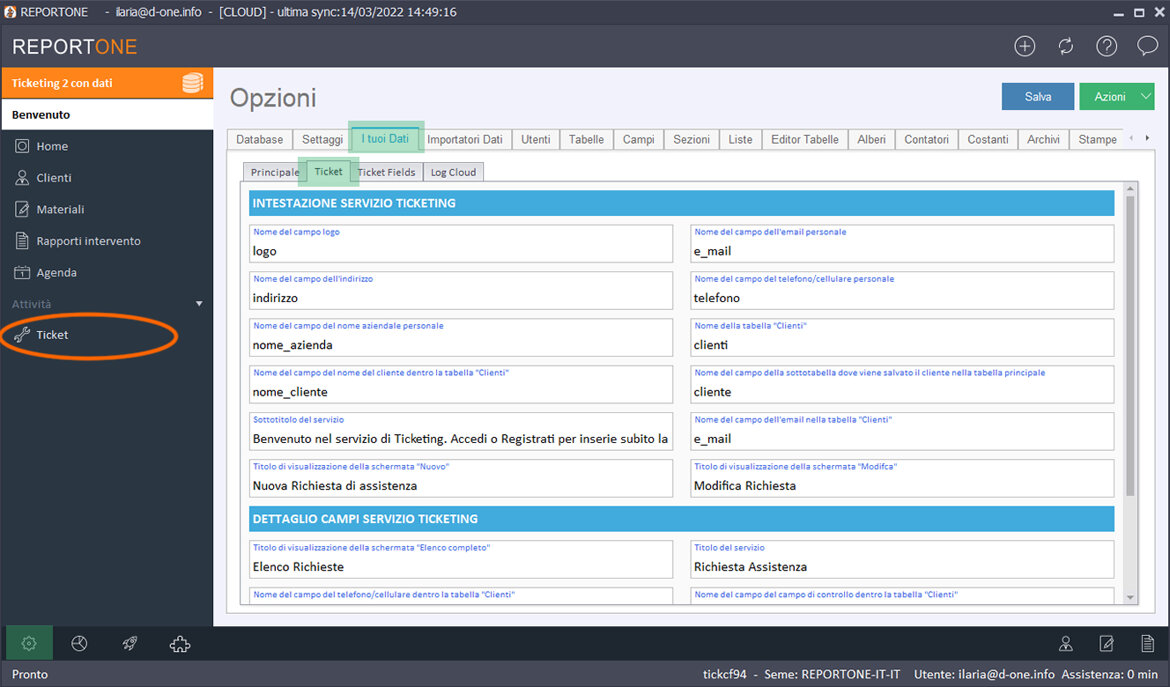
FIELDS ALREADY PRE-FILLED, BUT CUSTOMIZABLE (Better not to change the name of these Fields) in the Your Data table: In the additional Ticket Table all fields are already filled in with the name visible both on the owner side and on the client side, when accessing their display panel.
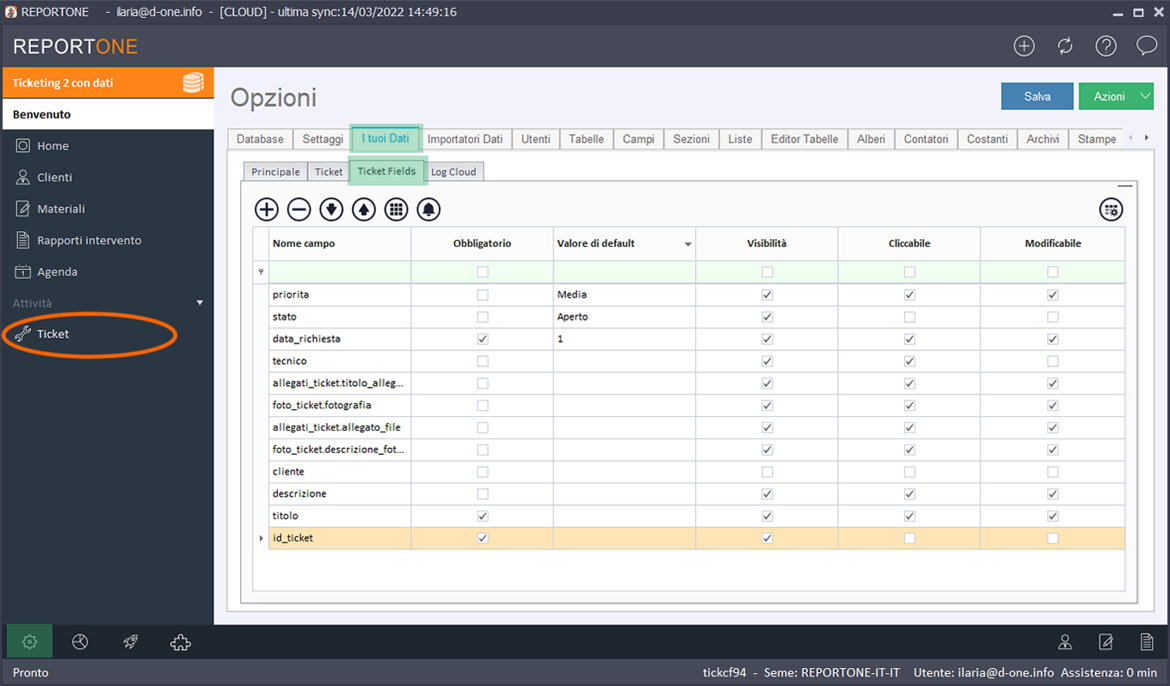
The Additional Table Ticket Fields is a table where you can set limits for your client on what they can view or how they can interact. It refers to the Ticket Section so it will have as many rows as there are columns in the Ticket Section.
To add a new List Field with Dropdown Menu
To modify the fields: Go to the Ticket section, the settings gear at the top, then select Fields and click on the + to add a field.
To Edit an Existing Field
To modify the fields: Go to the Ticket section, the settings gear at the top, then select the Field you want to edit and the pencil to edit
N.B. Please note that all updates regarding new contacts, new tickets, and ticket changes will be notified via email.
For the end customer who uses the service:
The end customer will be able to access the ticket service through the link they will receive from the service owner, which can be found in the "url slot ticketing" field, in the ticket tab. The end customer independently enters the support request and follows its progress through the account they create on the portal without interrupting the workflow in the field.
If this is the first time accessing the service, the first thing to do is to register. Once all the fields have been filled out and the registration request has been sent, you will be able to access the service by entering your credentials in the login form (the link will also be sent via email).
What the user will be able to do is add new ticket requests, modify certain parameters (according to the limits set by the ticket service owner), and view the list of requests made.
Copyright © D-One Software House - VAT: 02211990367 - ReportOne Program developed with the Nios4 platform - Powered by D-One - Privacy Policy
Cloud Terms and Conditions - Software Licenseand - Cookie Settings
CONTACTS : Salessales@d-one.info